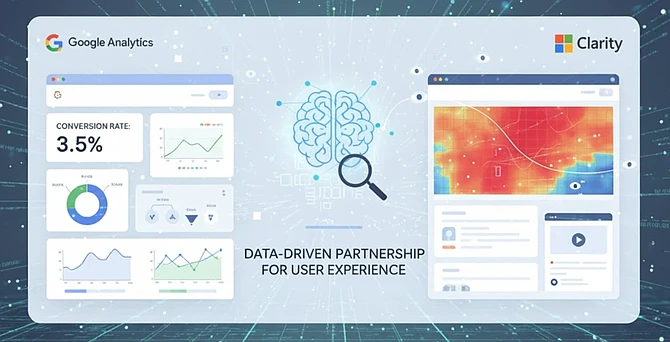
Microsoft Clarity is a free behavioral analytics tool that provides qualitative insights into user behavior through session recordings and heatmaps. When used alongside Google Analytics, it creates a comprehensive analytics solution that combines quantitative metrics with visual user experience data, enabling a deeper understanding of website performance and user interactions.
Microsoft Clarity and Google Analytics are not competitors, but rather complementary tools that together provide a more comprehensive picture of website performance. Google Analytics delivers the essential metrics and data infrastructure for measuring business outcomes, while Clarity adds the crucial context of actual user behavior. This combination enables organizations to not only track what’s happening on their website but also understand why it’s happening, leading to more informed decisions and better user experiences.
Overview of Microsoft Clarity
Microsoft Clarity is a user behavior analytics platform that offers:
- Session Recordings: Real playback of individual user sessions showing mouse movements, clicks, scrolling, and navigation patterns
- Heatmaps: Visual representations of where users click, scroll, and engage on pages
- Rage Clicks & Dead Clicks: Automatic detection of user frustration signals
- JavaScript Error Tracking: Identification of technical issues affecting user experience
- Zero Cost: Completely free with unlimited sessions and no data sampling
How Clarity Complements Google Analytics
Google Analytics: The “What” and “How Many”
Google Analytics excels at providing quantitative data:
- Traffic sources and volumes
- Conversion rates and goals
- User demographics and interests
- Page views and bounce rates
- E-commerce tracking and revenue attribution
Microsoft Clarity: The “Why” and “How”
Clarity fills the gaps by showing qualitative behavior:
- Why users don’t complete forms or checkout processes
- How users actually navigate your site versus expected paths
- Where users experience confusion or frustration
- Which page elements are being ignored or attracting attention
Key Complementary Use Cases
1. Diagnosing High Bounce Rates
Google Analytics tells you that a landing page has a 75% bounce rate. Clarity shows you that users are rage-clicking a non-functional button or can’t find the call-to-action.
2. Optimizing Conversion Funnels
Google Analytics identifies where users drop off in your checkout process. Clarity reveals that users are confused by unclear form labels or encounter errors.
3. Improving User Experience
Google Analytics reports average time on page and exit rates. Clarity demonstrates actual scrolling behavior, showing whether users even see your content below the fold.
5. Mobile Experience Optimization
Google Analytics shows higher mobile bounce rates. Clarity reveals touch target issues, unresponsive elements, or content that doesn’t display properly.
Integration Benefits
Clarity integrates seamlessly with Google Analytics, allowing you to:
- Filter Clarity recordings by Google Analytics segments
- View user sessions that led to specific conversions or abandonment
- Combine demographic data with behavioral insights
- Create a unified view of quantitative and qualitative metrics
Implementation Advantages
Easy Setup: Clarity requires only a simple tracking code installation and can be deployed alongside Google Analytics without conflicts. Please see the installation steps below.
Privacy Compliant: Automatically masks sensitive information in recordings and respects user privacy preferences.
Performance Impact: Minimal impact on page load times with asynchronous loading.
No Data Limits: Unlike Google Analytics 4’s event limits, Clarity has no restrictions on session volumes or data retention.
Practical Workflow
- Identify Issues in Google Analytics: Spot pages with high exit rates, low engagement, or poor conversion performance
- Investigate in Clarity: Watch recordings filtered to those specific pages or user segments
- Diagnose Problems: Observe actual user behavior to understand friction points
- Implement Changes: Make data-driven improvements based on visual evidence
- Measure Results: Return to Google Analytics to quantify the impact of changes
Limitations to Consider
While Clarity is a powerful complement to Google Analytics, it has some limitations:
- No attribution modeling or marketing channel analysis
- Limited demographic or audience insights
- No e-commerce revenue tracking
- Session recordings show behavior but not user intent or context
- Cannot replace the predictive analytics features of GA
Implementation
Steps to implement MS Clarity on your sites
- Go to clarity.microsoft.com
- Log in to Clarity
- Create a project for your website.
- Copy the Clarity tracking code snippet (you’ll get a script like clarity(‘set’, …)).
- Go to Google Tag Manager
- Open your GTM container for the website.
- Click Tags → New.
- Create a Custom HTML Tag
- Choose Tag Type → Custom HTML.
- Paste the Clarity script you copied from the Clarity dashboard.
- Example (you’ll see something like this, but with your unique project ID):
- Open your GTM container for the website.
- Click Tags → New.
- Create a Custom HTML Tag
- Choose Tag Type → Custom HTML.
- Paste the Clarity script you copied from the Clarity dashboard.
- Example (you’ll see something like this, but with your unique project ID):